TEMP Zendesk
The goal of this strategy is to design illustrations that accept single payments and maximize either cash accumulation or guaranteed death benefit. Universal Life products (UL and IUL) will each show different options and we can run them in Ensight Intelligent Quote and compare the outcomes.
Single Pay Premium scenarios range from cash accumulation plans, lump sum transfers from other financial products, or simply the desire to pay once and eliminate the need for ongoing payments. Not all products allow Single Pays or Short Pays and some products have rules regarding how much can be paid into the policy in year one.
Case Example
Valued Client
Male
Age 45
$250K Single Pay
Preferred Non-Tobacco
$1 at Lifetime Cash Value Solve
1. To begin, enter your client’s basic information, SAVE and name the case, and then click Go to Product Type to continue.
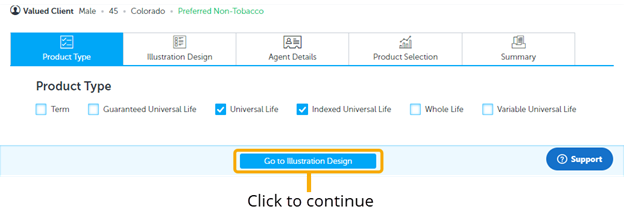
2. Product Type Page: select only
3. Solve For Page: Fill inputs as shown
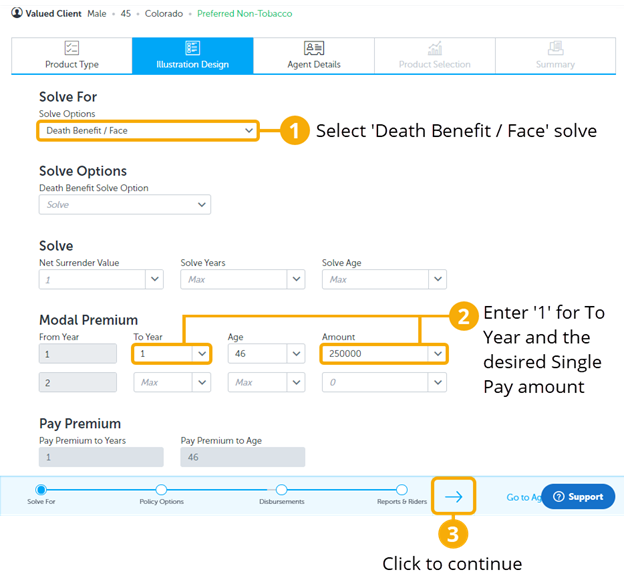
In this strategy, we chose to run a cash value solve. To do this, select ‘Solve’ instead of a ‘No Lapse Solve’ to allow the products to generate cash values. Inputting $1 into the 'Net Surrender Value' field makes the products run to lifetime.
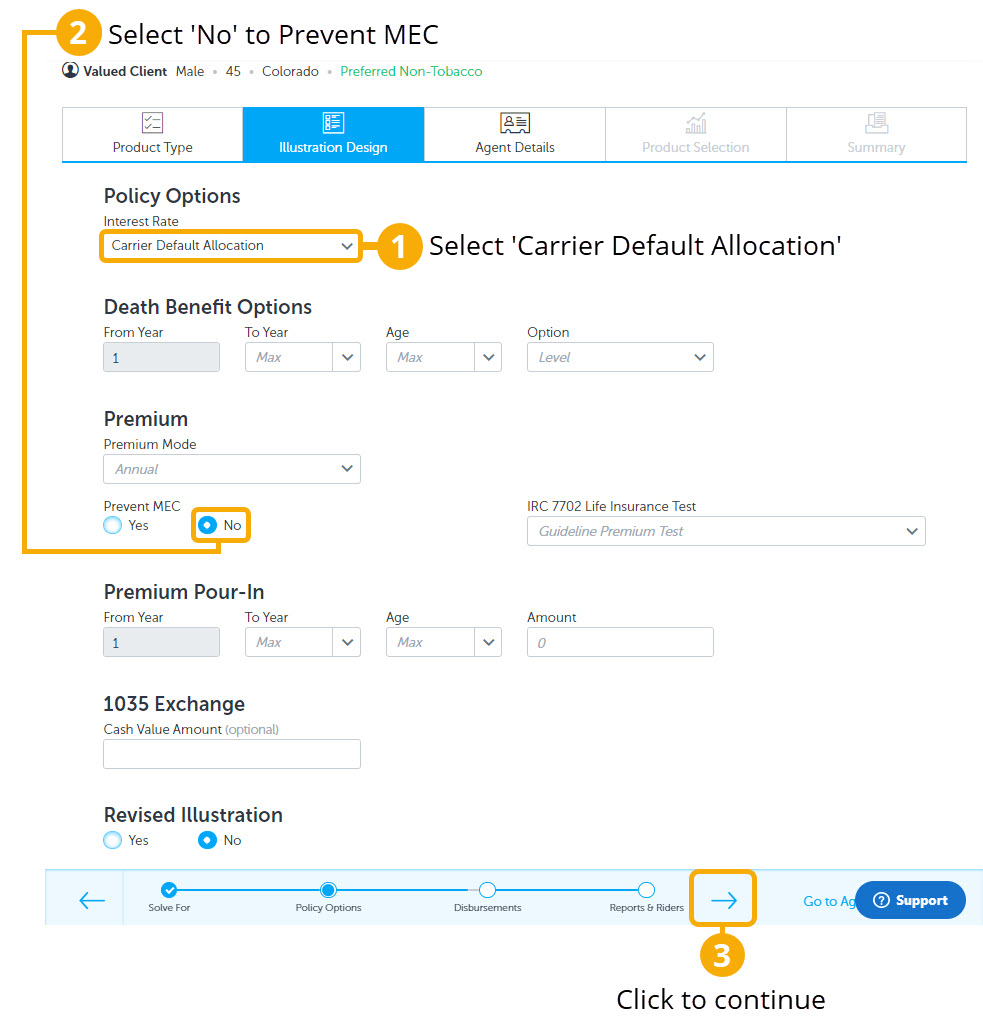
4. Policy Options Page: Fill inputs as shown
5. Disbursements Page: Select No
Then click the progress arrow to go to the next page
6. Reports and Riders Page: Select Yes on ‘Internal Rate of Return’ (IRR) only.
Then click ‘Go to Agent Details’ to continue.
7. Agent Details Page: Enter agent information.
Then click ‘Go to Product Selection’ to continue.
8. Product Selection Page: Click on desired products to illustrate and compare. In this example, you may want to select a mix of products such as UL and IUL with built in guarantees, and cash value accumulation.
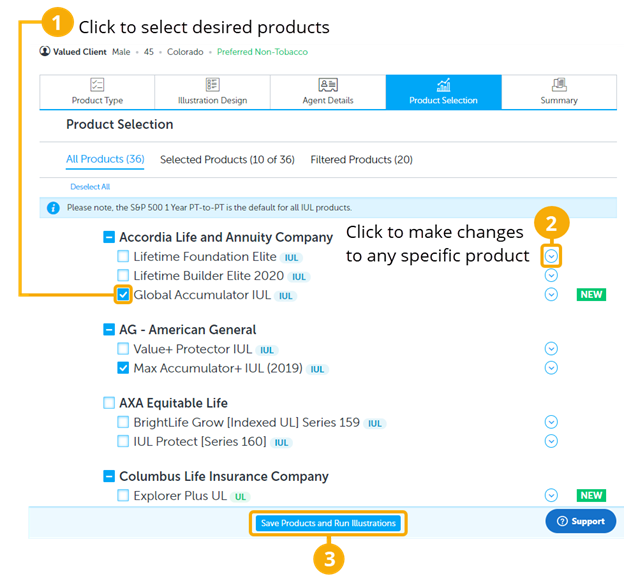
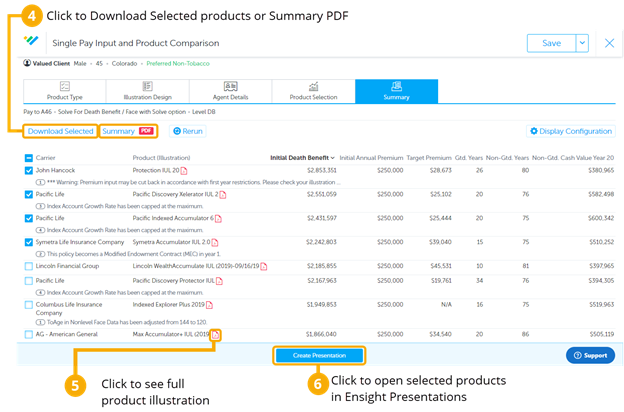
9. Summary Page: You will now see a scrolling list of products to select from.
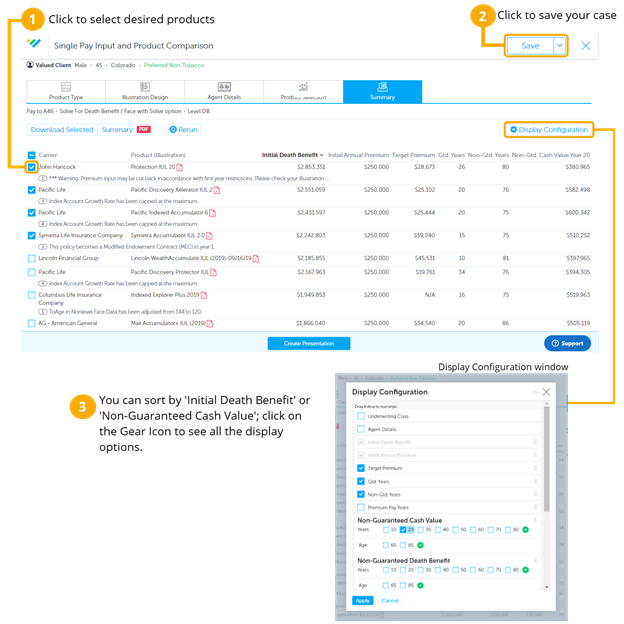
10. Summary Page (Continued):
- Click on the ’Initial Death Benefit’ column to sort high to low. This will help you see the most competitive products.
- This case design can be saved to your ‘Intelligent Quote Homepage’ by clicking SAVE AS in the top right corner. Make sure to use your naming convention when naming the case.
- When you check the boxes to select products, the ‘Download Selected’ and ‘Summary PDF’ buttons will become highlighted. ‘Download Selected' will download and save the illustrations to your computer. You can download a PDF version with the ‘Summary PDF’ button and print or send it as a benchmark or summary of the competitive products.
- Click on the illustration icon to see the full compliant illustration.
- Select the desired products to and click ‘Create Presentation’ to open the case in Ensight Presentations, where you can compare and present all the ledger values in the Product Table, Spreadsheet, and Charts.