 TEMP Zendesk
The goal of the case is to find the lowest possible premium for Permanent and Term products that have guaranteed death benefits. Running Permanent and Term products at the same time is a fast and efficient way to find the best pricing for a protection strategy. This also allows comparison between Permanent and Term products and how to use both. For this example, we will design and solve for Permanent products guaranteed to age 100, and 20-year Term products.
Ensight Intelligent Quote will run and compare all approved GUL and Term products by premium and other values to help you arrive at the most competitive products for your case.
Case Example
Valued Client
Male
Age 45
Preferred Non-Tobacco
$5MM DB for GUL
Guaranteed to age 100
$7MM DB for Term
Guaranteed for 20 years
1. To begin, enter your client’s basic information, SAVE and name the case, and then click Go to Product Type to continue
2. Product Type Page select only:
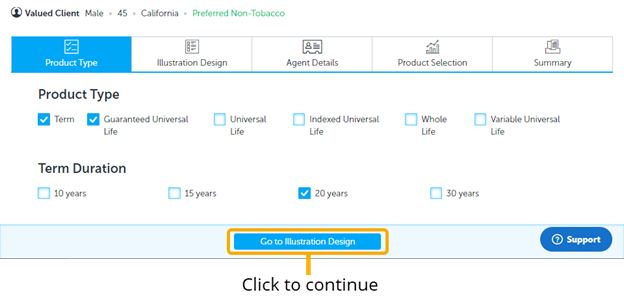
3. Solve For Page: Fill inputs as shown
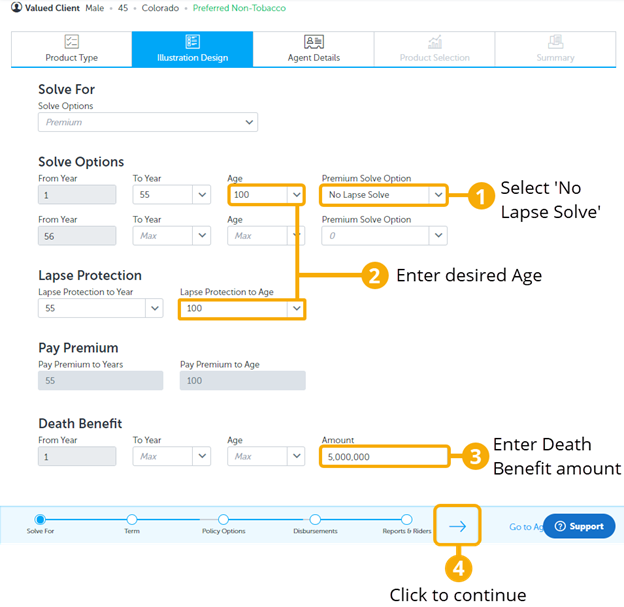
In the Solve Options, select ‘No Lapse Solve’ for Year 1 to Year 55, or until the client is age 100. The No Lapse Solve will guarantee the death benefit to the specified age, which is age 100 in this example. The No Lapse Solve determines which products will be available (i.e. products that have a No Lapse Guarantee).
4. Term Page: Fill inputs as shown
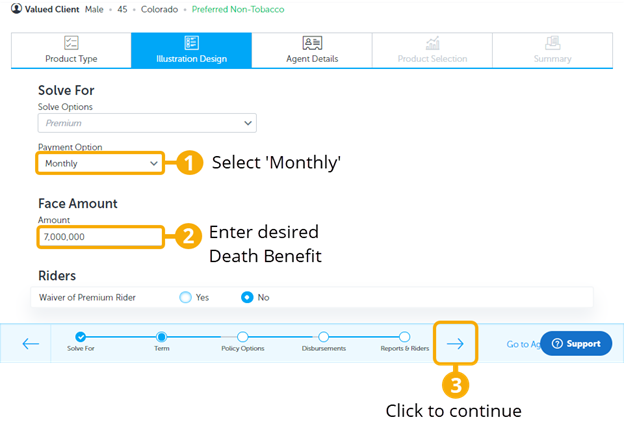
While there is an option to solve for a Term product’s death benefit, in this case, we want to solve for Premium.
5. Policy Options Page: Fill inputs as shown
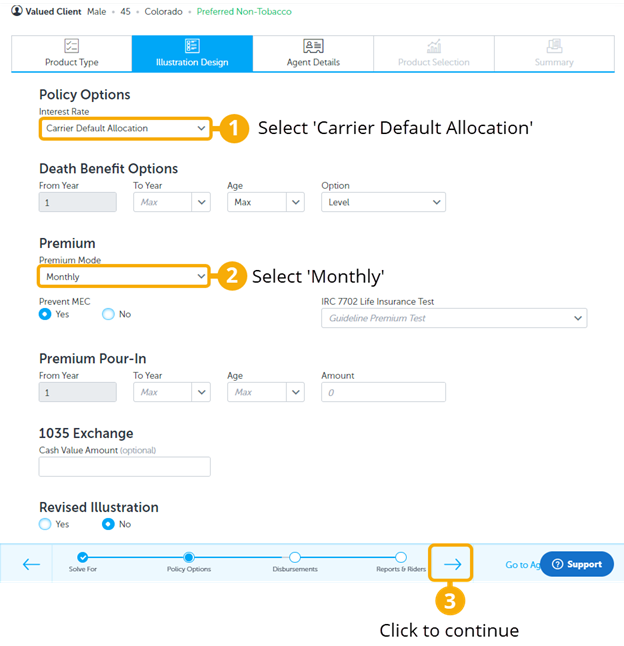
For this strategy, the default values on this page are the most common inputs selected. The only input we will change is Premium Mode, which we chose monthly.
6. Disbursements Page: Select No
Click the Progress Arrow to go to the next page
7. Reports and Riders Page: Select Yes on ‘Internal Rate of Return’ (IRR) and 'Client Input Summary.' Then click ‘Go to Agent Details’ to continue.
8. Agent Details Page: Enter agent information.
Then click ‘Go to Product Selection’ to continue.
9. Product Selection Page: click on desired products to illustrate and compare.
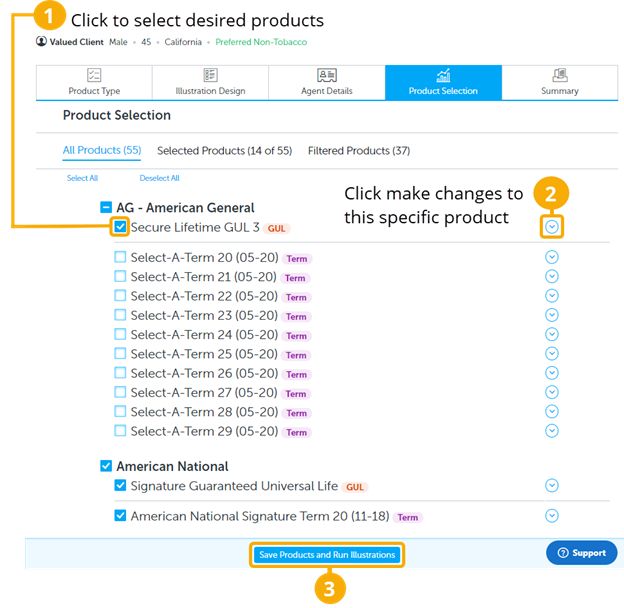
10. Summary Page: You will now see a scrolling list of products to choose from.
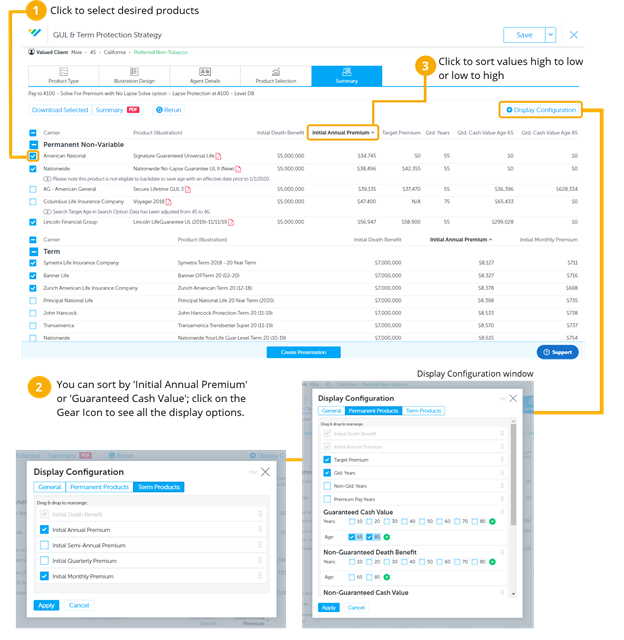
11. Summary Page (Continued):
- Click on the ‘Initial Annual Premium’ column to sort it low to high. This will help you see the most competitive products.
- This case design can be saved to your ‘Intelligent Quote Homepage’ by clicking SAVE AS in the top right corner. Make sure to use your naming convention when naming the case.
- When you check the boxes to select products, the ‘Download Selected’ and ‘Summary PDF’ buttons will become highlighted. ‘Download Selected' will download and save the illustrations to your computer. You can download a PDF version with the ‘Summary PDF’ button and print or send it as a benchmark or summary of the competitive products.
- Click on the illustration icon to see the full compliant illustration.
- Select the desired products to and click ‘Create Presentation’ to open the case in Ensight Presentations, where you can compare and present all the ledger values in the Product Table, Spreadsheet, and Charts.