Nick Unrue
How to save a design to a new or existing case in Intelligent Quote
Do you have an existing design that you want to quickly recreate for a new or existing client? Well, now you can! See how to save a design to a new or existing case below.
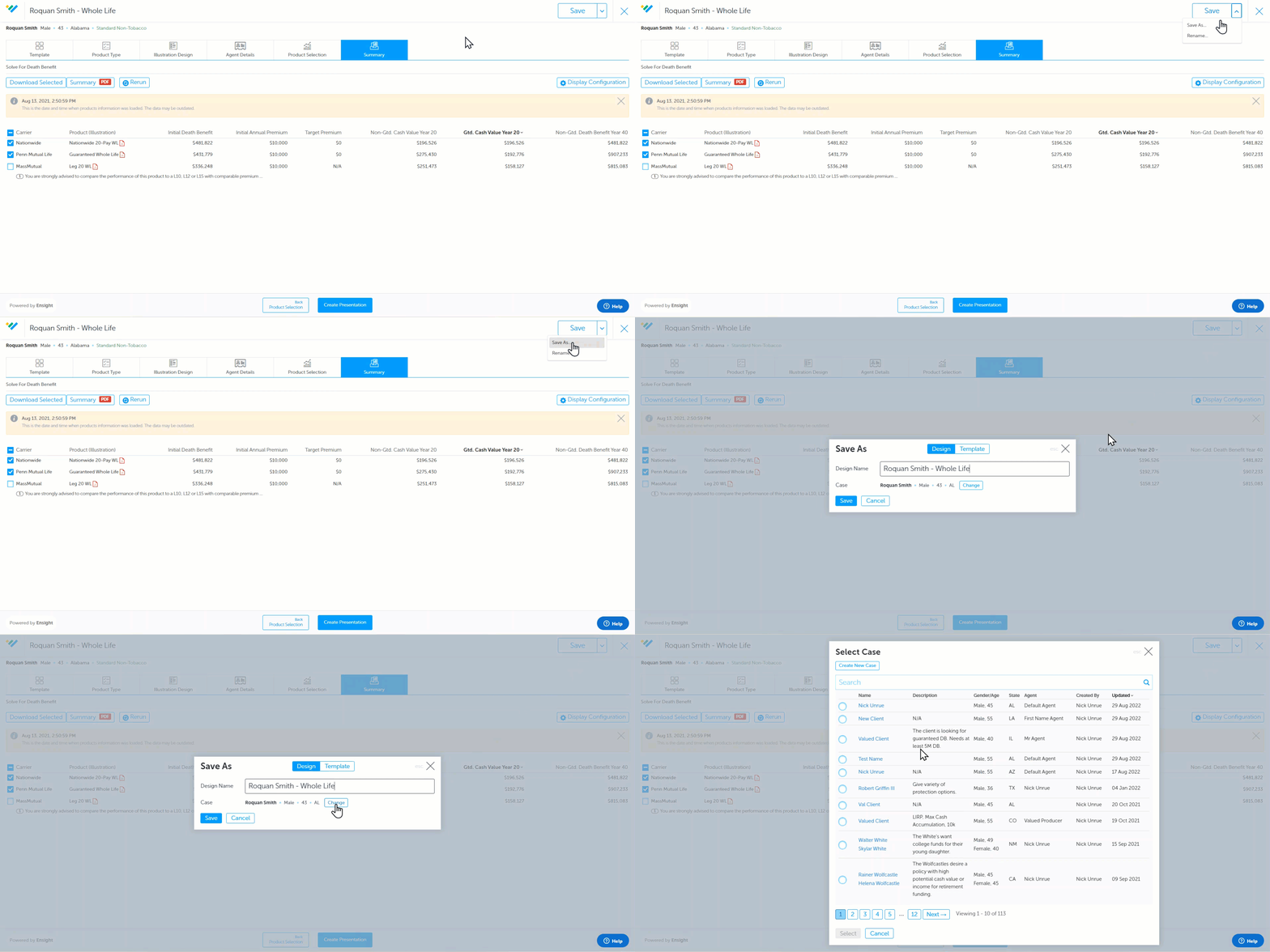
- Find the design that you wish to save to a new or an existing case.
- Click "Save As" and then "Change" - This is where you can create a new case and add this design to it or save it to an existing case / client.
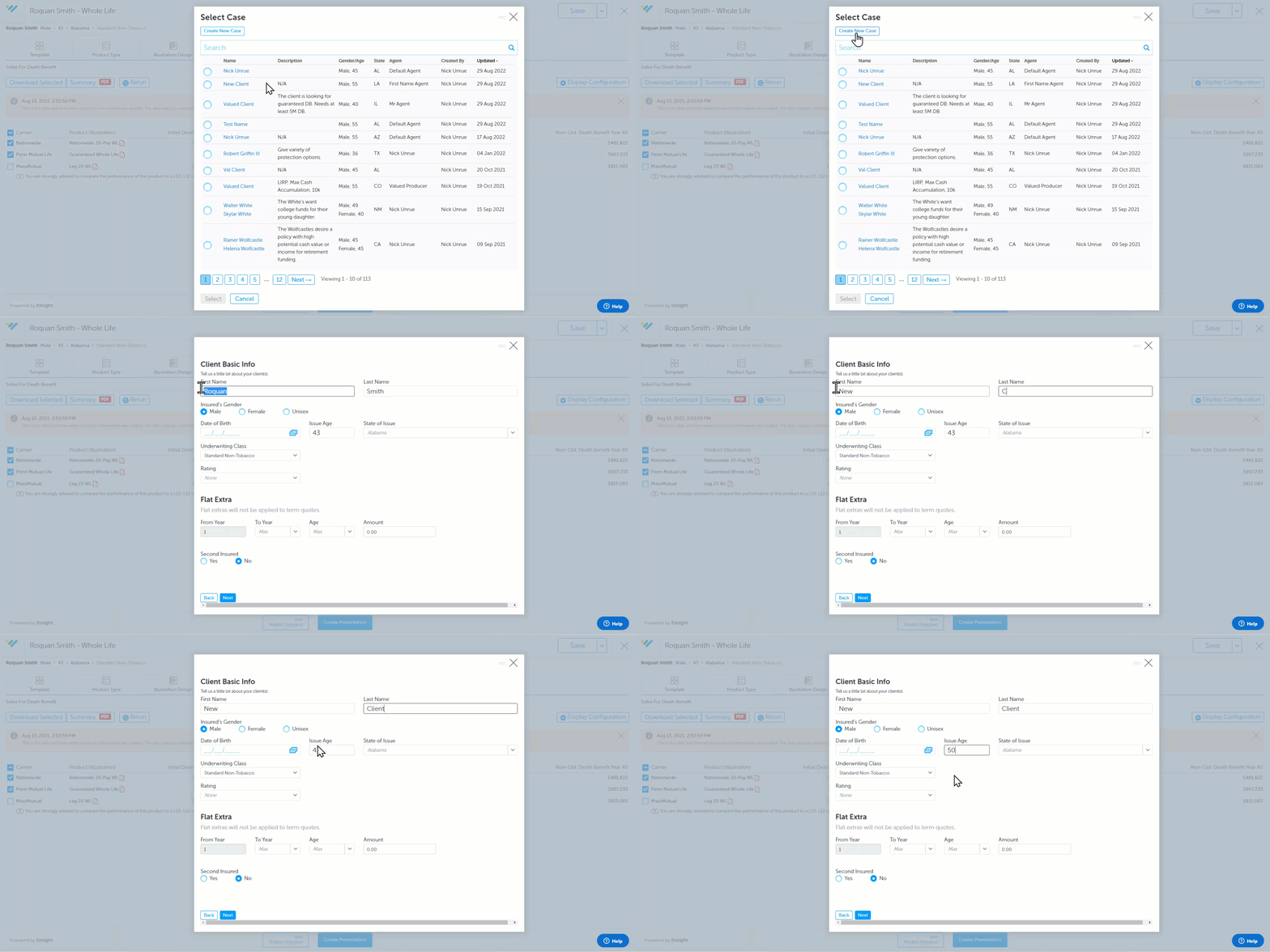
- If you click "Create New Case" - You will be able to enter in new client and agent information and select products to run.
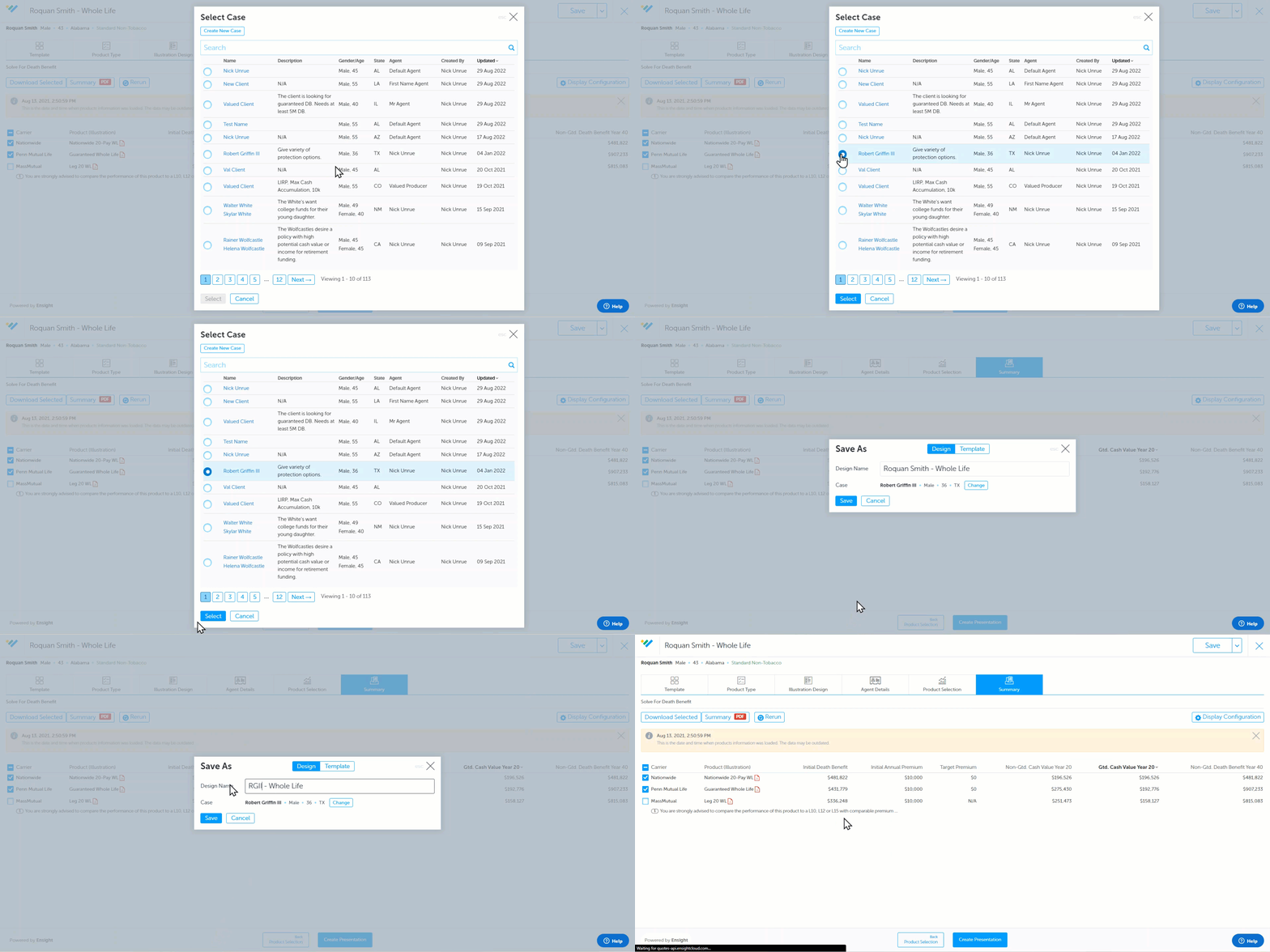
- If you select an existing case to save the design to - scroll down and click the blue "Select" button, then you can rename the design and "Save". Once the design saves, make sure you change the client basic info (if necessary) and agent details (if necessary) then click "Save" again!